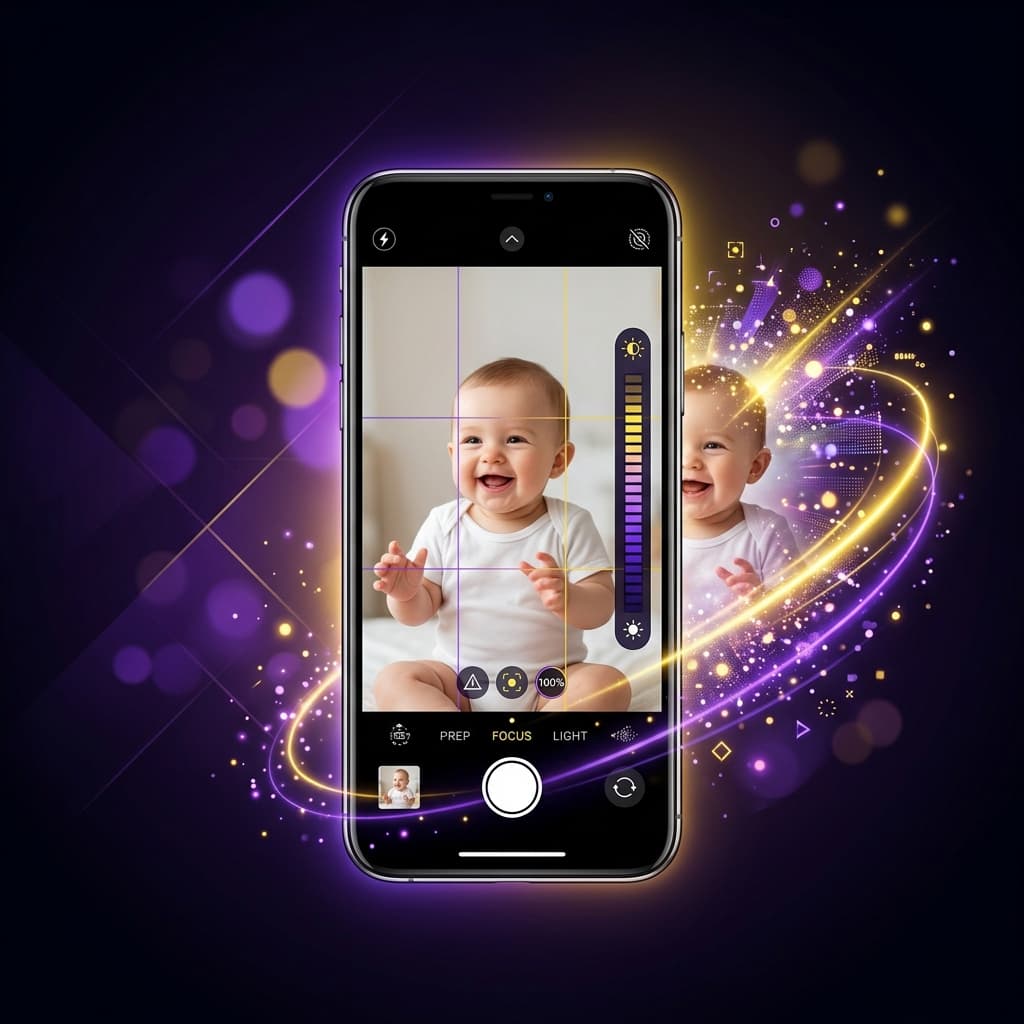
How to Prepare the Perfect Photo for AI Baby Dance Videos (2026 Guide)
Most failed AI dance videos are not caused by the AI. They are caused by the photo.
If your output looks weird, blurry, or just "off," the problem usually started before you clicked Generate. The AI can only work with what you give it. A great photo produces a great video. A bad photo produces a bad video — no matter which tool or template you use.
This guide gives you the exact photo checklist that separates good results from wasted attempts.
If you want to follow along while reading, open the generator here: Free AI Baby Dance Video Generator.
Quick answer: the 5 rules
If you only remember five things:
- Clean background — remove clutter and obstructions behind the subject
- One person only — extra people confuse the AI
- Match photo to template — full-body template needs a full-body photo
- Complete subject — do not cut off the head, hands, or feet
- Even lighting, clear face — no harsh shadows, no motion blur
Follow these five rules and your success rate will improve dramatically.
Rule 1: Keep the background clean
This is the single most overlooked factor.
When there are objects, furniture, or other people behind your subject, the AI spends processing power trying to figure out what is the subject and what is the background. The result: warped edges, blurry boundaries, and body parts that merge with nearby objects.
What to do
- Use a plain wall, a solid-colored backdrop, or an open outdoor space
- Move away from shelves, tables, and doorframes
- If you cannot change the location, step forward so the background is further away and more blurred
What to avoid
- Busy indoor scenes with lots of furniture
- Backgrounds where objects are close to or overlapping the subject
- Patterned wallpaper or curtains directly behind the subject
A simple background lets the AI focus on what matters: making your subject dance.
Rule 2: One person only
AI dance generation works best with a single, clearly visible subject. When multiple people appear in the frame, the AI has to guess which person to animate.
Common problems with group photos:
- The AI picks the wrong person
- Nearby people get partially animated, creating distortion
- Edges between people blend together during motion
What to do
- Photograph one person at a time
- If you only have a group photo, crop it to isolate one person before uploading
- Make sure the cropped version still follows the other rules (complete body, clean edges)
When group photos might work
If there is one dominant subject who is clearly larger and more centered than anyone else, the AI may handle it. But the safest approach is always: one person, one photo.
Rule 3: Match your photo to the template type
This is the rule most users miss completely.
Different dance templates show different amounts of the body. If your photo does not match the template's framing, the AI has to invent or guess what it cannot see — and that is where quality drops.
Quick reference table
| Template type | What it shows | Photo you need | Common mistake |
|---|---|---|---|
| Full-body dance | Head to feet, full movement | Full-body photo showing head, arms, legs, and feet | Uploading only an upper-body shot |
| Upper-body / expression | Waist up, arm and face movement | Half-body photo from waist up | Using a distant full-body shot where the face is too small |
| Close-up / reaction | Face and shoulders | Clear headshot or chest-up photo | Using a blurry or side-angle face |
How to check
Before uploading, preview the template. Watch the sample animation for 2 seconds:
- If the template shows a full standing body dancing, use a full-body photo
- If the template focuses on upper body and expressions, use a half-body photo
- If unsure, default to a full-body photo — it gives the AI more to work with
Browse templates to see what framing each one needs: AI Baby Dance Templates.
Rule 4: Keep the subject complete
Do not cut off parts of the body at the edge of the frame.
When the AI cannot see a hand, foot, or the top of the head, it has to guess what those parts look like — and during motion, those guesses become visible as distortion or missing limbs.
What to do
- Leave some space around the subject on all sides
- Make sure the head is not cropped at the top
- For full-body templates, make sure both feet are visible
- Step back slightly if the subject is too close to the camera
What to avoid
- Cropping at the wrist, ankle, or forehead
- Zooming in so tightly that the subject fills the entire frame with no margin
- Photos where arms or legs extend past the edge of the image
A good rule of thumb: if you can see a small margin of space around the entire subject, the AI has enough context.
Rule 5: Even lighting and a clear face
The face is the most important part of any AI dance video. It is what viewers look at first, and it is the hardest part for the AI to keep consistent across frames.
Lighting
- Natural, diffused light works best (near a window, overcast outdoor light)
- Avoid harsh overhead lighting that creates dark eye sockets
- Avoid backlit situations where the face is in shadow
- Avoid direct flash that washes out skin detail
Face clarity
- The face should be in focus — not motion-blurred
- The face should take up at least 15-20% of the total image area
- Avoid heavy beauty filters or AI-enhanced selfie modes — they smooth out the facial details the AI needs to track identity across frames
- A slight forward-facing angle works better than an extreme side profile
If your output face looks blurry even with a good photo, the issue may be quality settings. Read: How to Fix Blurry AI Baby Dance Videos.
Good vs. bad photo examples
Good photos
- One person standing against a plain white wall, full body visible, even lighting
- A baby sitting on a clean floor with no nearby objects, upper body clearly visible
- A child standing outdoors on grass with open sky behind, feet to head in frame
Bad photos
- Baby on a couch surrounded by toys, blankets, and another child nearby
- Group family photo where the target baby is small and partially blocked
- Close crop that cuts off the baby at the waist when the template is full-body
- Backlit photo taken against a bright window where the face is dark
The difference between these is not camera quality. It is preparation.
Common mistakes and quick fixes
"My video looks weird around the edges"
Cause: Background objects too close to the subject. Fix: Retake the photo against a cleaner background, or crop to remove nearby clutter.
"The AI animated the wrong person"
Cause: Multiple people in the frame. Fix: Crop to isolate one person, or retake with only one subject.
"The feet or hands look distorted"
Cause: Body parts were cut off at the edge of the photo. Fix: Retake with more space around the subject. Step back slightly.
"The template does not match my photo"
Cause: Full-body template with an upper-body photo, or vice versa. Fix: Check the template preview first, then choose a photo that matches the framing.
"The face looks like a different person halfway through"
Cause: Face too small in frame, or lighting is uneven. Fix: Use a closer framing where the face is larger and more clearly lit.
For more quality troubleshooting beyond photo preparation, read: How to Fix Blurry AI Baby Dance Videos.
Photo preparation checklist (copy this)
Before uploading:
- Background is clean — no clutter or obstructions behind the subject
- Only one person in the frame
- Photo framing matches the template type (full-body or half-body)
- Subject is complete — no body parts cut off at the edges
- Face is in focus with even, natural lighting
- No heavy filters or beauty mode applied
- Image resolution is at least 1080px on the long side
If all seven pass, you are ready to generate.
What to read next
If your photo is ready and you want the full generation workflow: How to Make an AI Baby Dance Video for Free
If your output still looks blurry after fixing the photo: How to Fix Blurry AI Baby Dance Videos
If you want to see which templates match your photo type: AI Baby Dance Templates